In the past week I have written lingo-learner, which is a small application for learning a language by using cloze tests. It allows you to create your own cloze tests.
You can run it in the web and on your desktop.
LingoLearner can be found here:
All code can be found in a Git repository at:
The implementation for the WPF Desktop application can be found here:
Both implementations run entirely client-side on your machine. No data is transmitted to external services.
Table of contents
Learning with LingoLearner in the Web
The Web application is available at:
It has a pretty simple interface and starts in the "Learning mode":
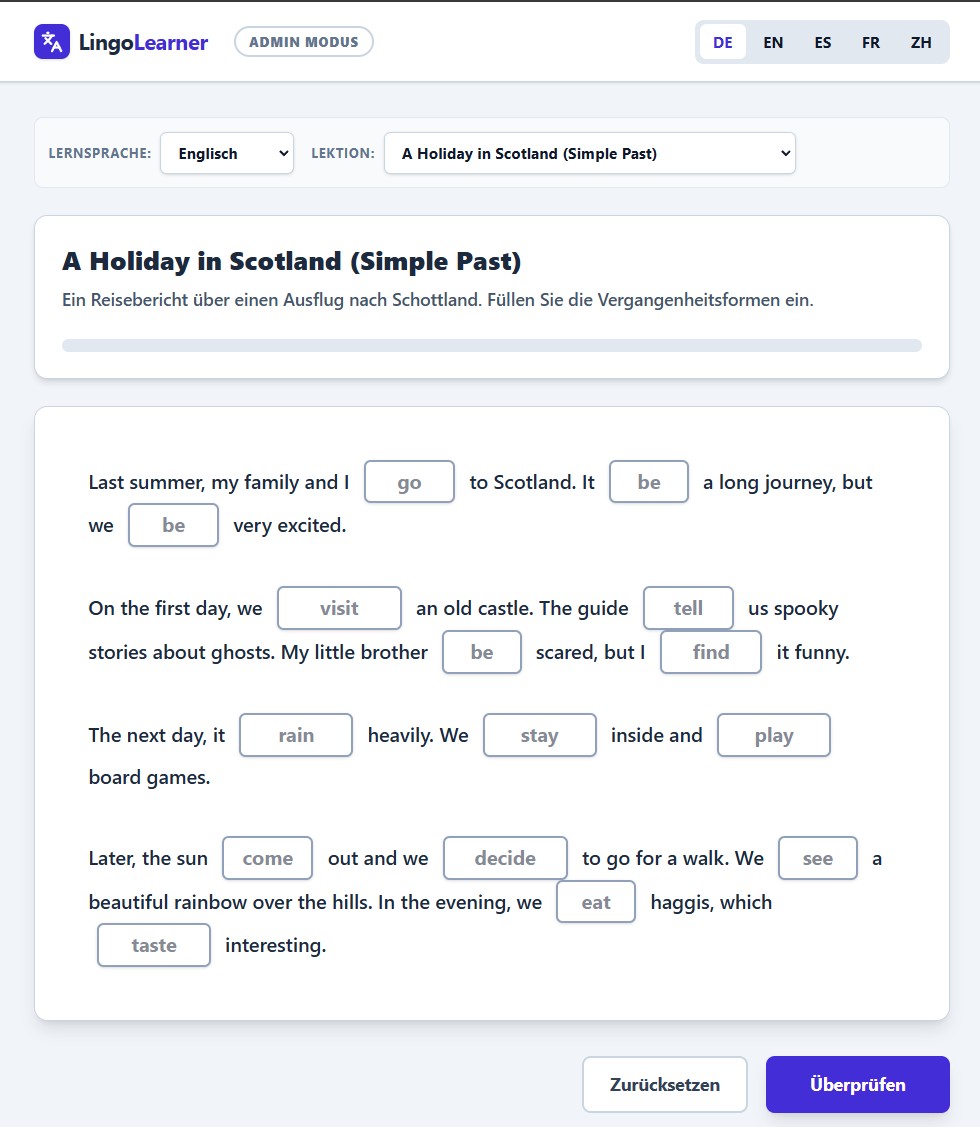
If you are uncomfortable with using English for the application, you can switch it by selecting the language in the upper right corner of the application:

You can either start with the default lesson of select the language you want to train with:
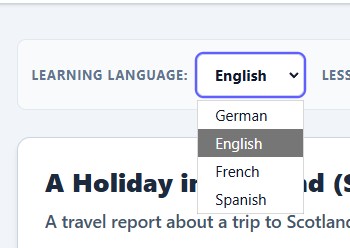
You can select the lesson to train in the top bar:

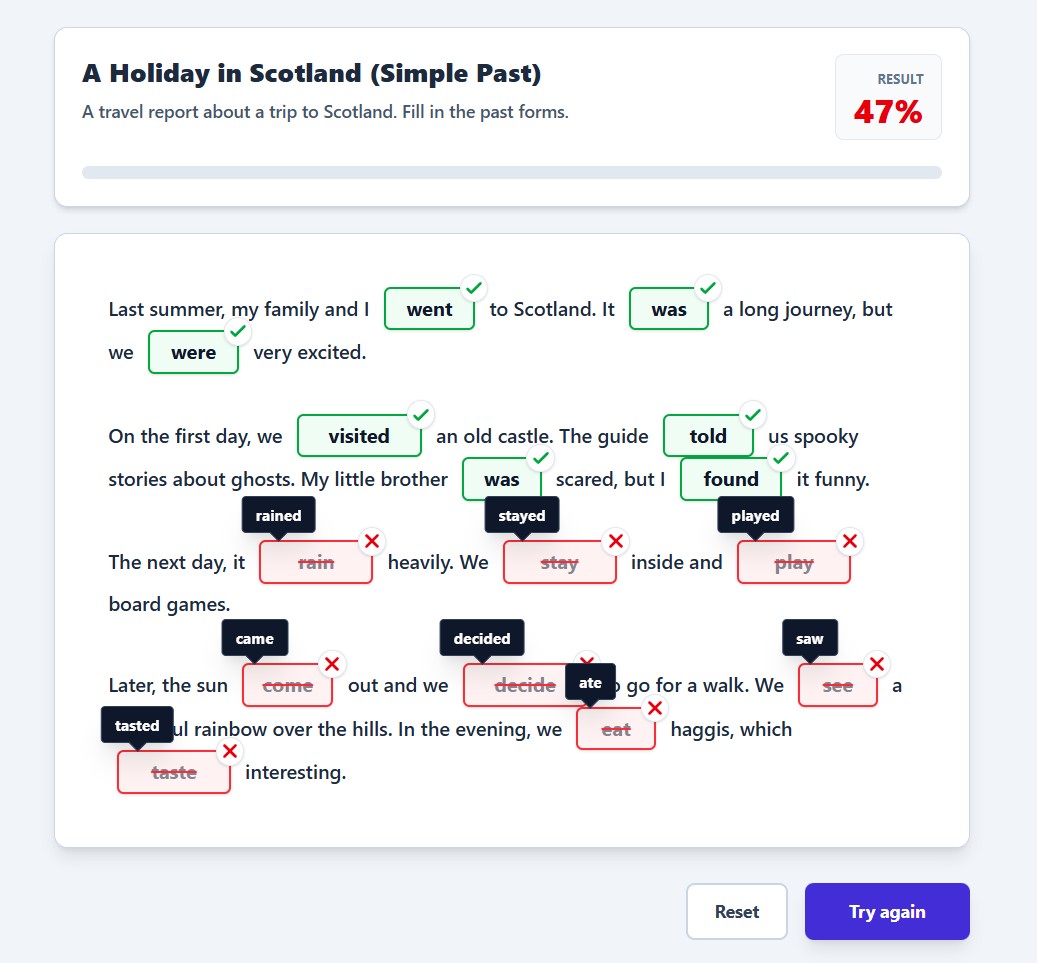
If you click on "Check" button, your Cloze test is evaluated:
Creating your own lessons
You want to create your own lessons? It's easy by using the Admin Mode!
You can find it by clicking on "ADMIN MODE" in the upper left corner of the application:
The Admin Mode has a pretty straightforward interface:
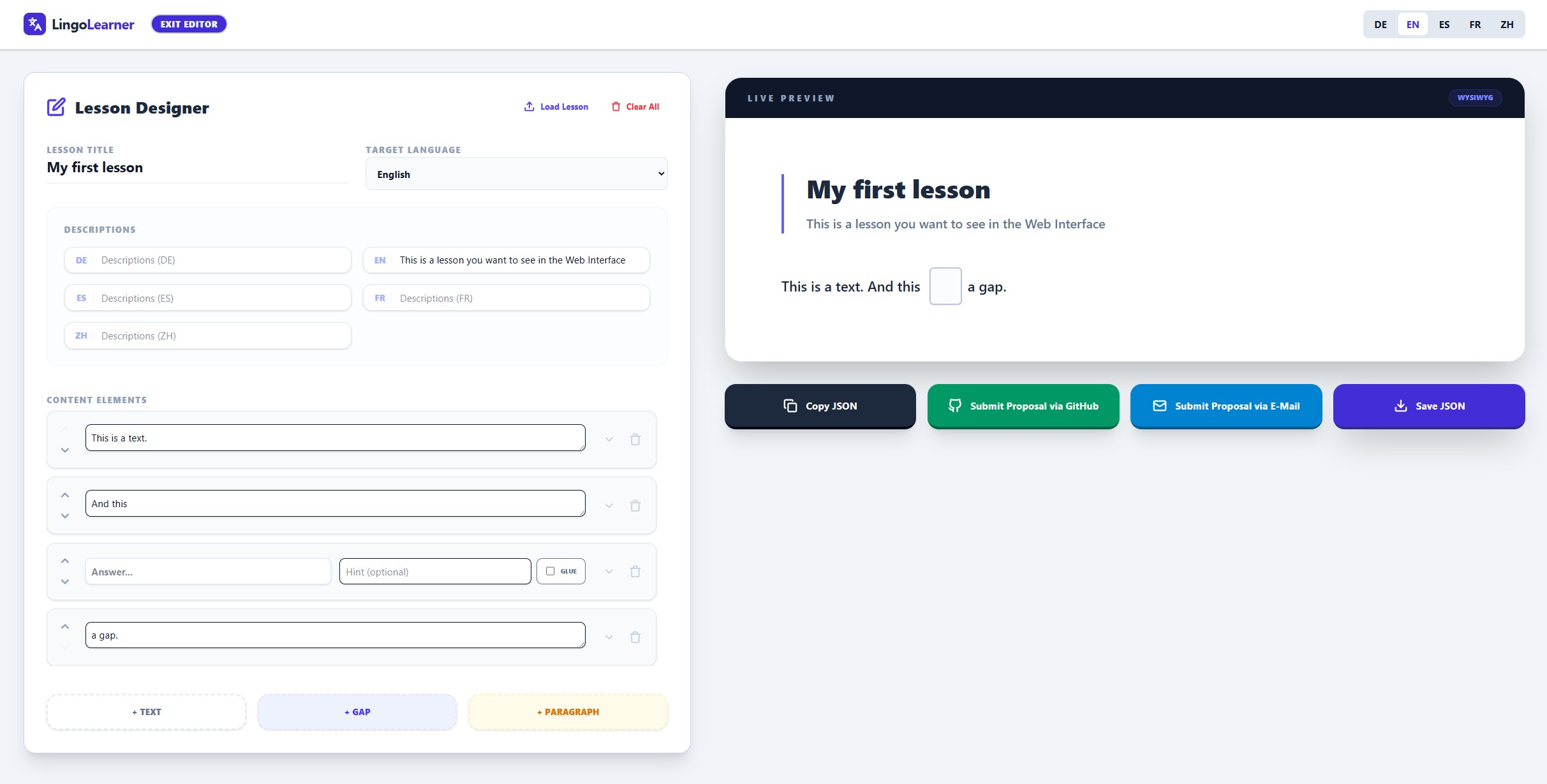
In the upper area, you can insert the lesson title and descriptions for each language. The description is optional, but it's useful to give instructions for the lesson.
English is always the fallback, if you didn't fill out a description.
There are three elements to select from. You can find them in the section below the content elements:

Once the element has been added, you might want to change the position in the text. You can use up and down buttons on the left side of the Content Element:
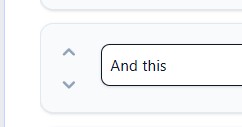
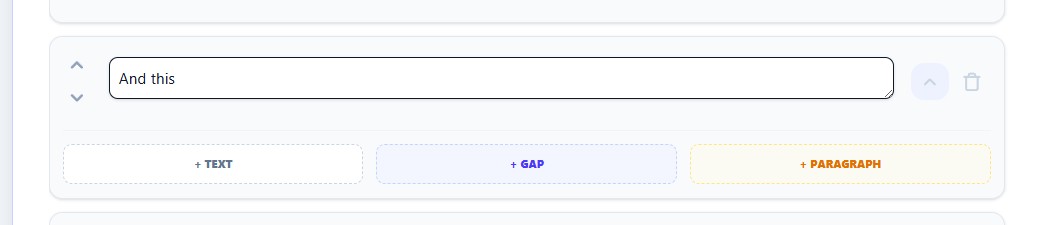
But you don't want to click the up button a hundred times to move it around.
That's why you can expand a content element and add it behind a given element:
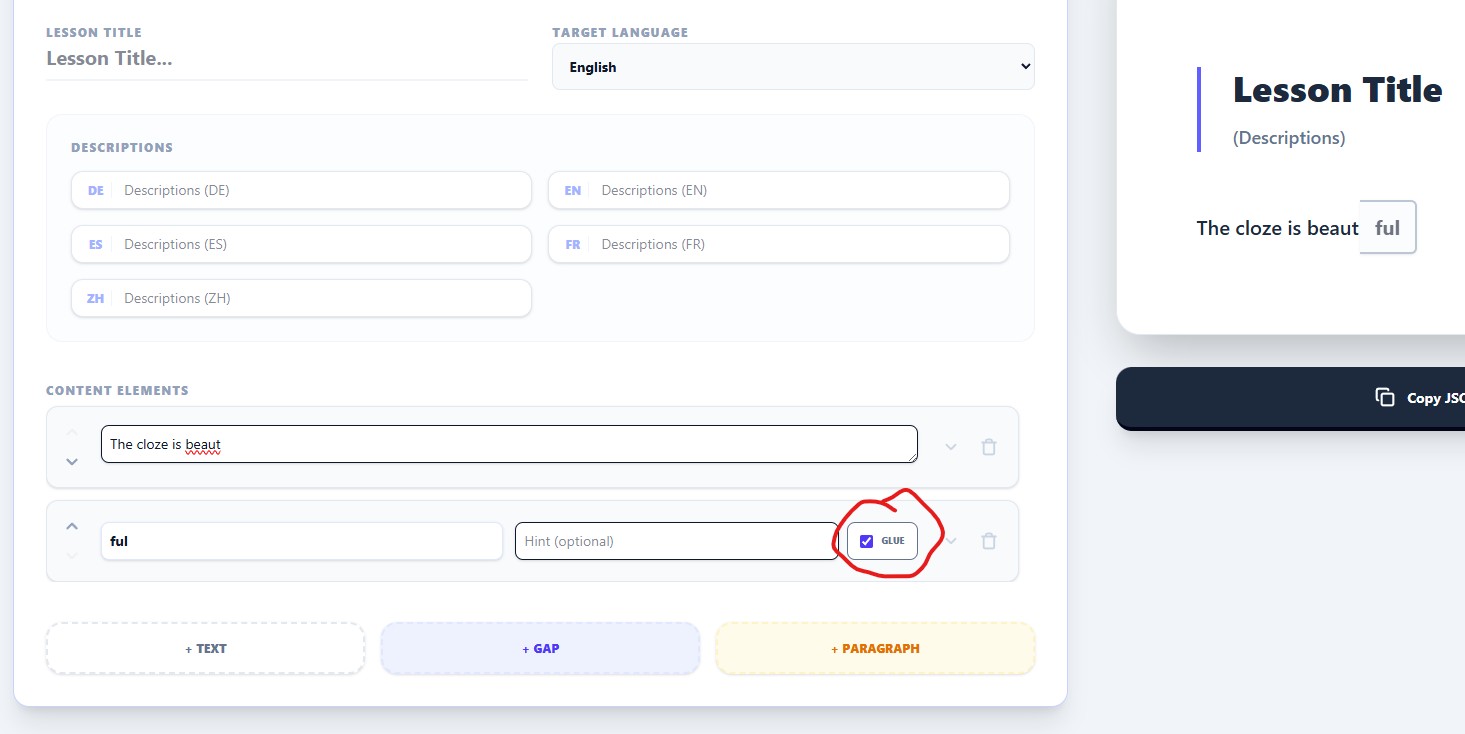
If you want to train word endings, you can glue the cloze to a word:
Submitting your lesson to be included
If you don't want to self host the app on your server, there is no way to directly add the lesson to the website.
You'll need to submit it to me for inclusion.
I will add it to the repository and it gets loaded by the interface, once it has been added to the target lesson folder.
Either submit it using a GitHub Issue or send it by mail to:
lingo-lesson@bytefish.de
If you are using the buttons, the lesson is downloaded and the GitHub Issue or e-Mail is filled out already.
You'll just need to attach the downloaded file:

Now if you want to start all over, select the "Clear All" Button next to the title.
LingoLearner as a Desktop Application
If you want to use LingoLearner using a Desktop application, you can get it at:
The interface basically is the same, except you can now load and store lessons on your own filesystem.
Again everything runs local and nothing is transmitted to an external service.
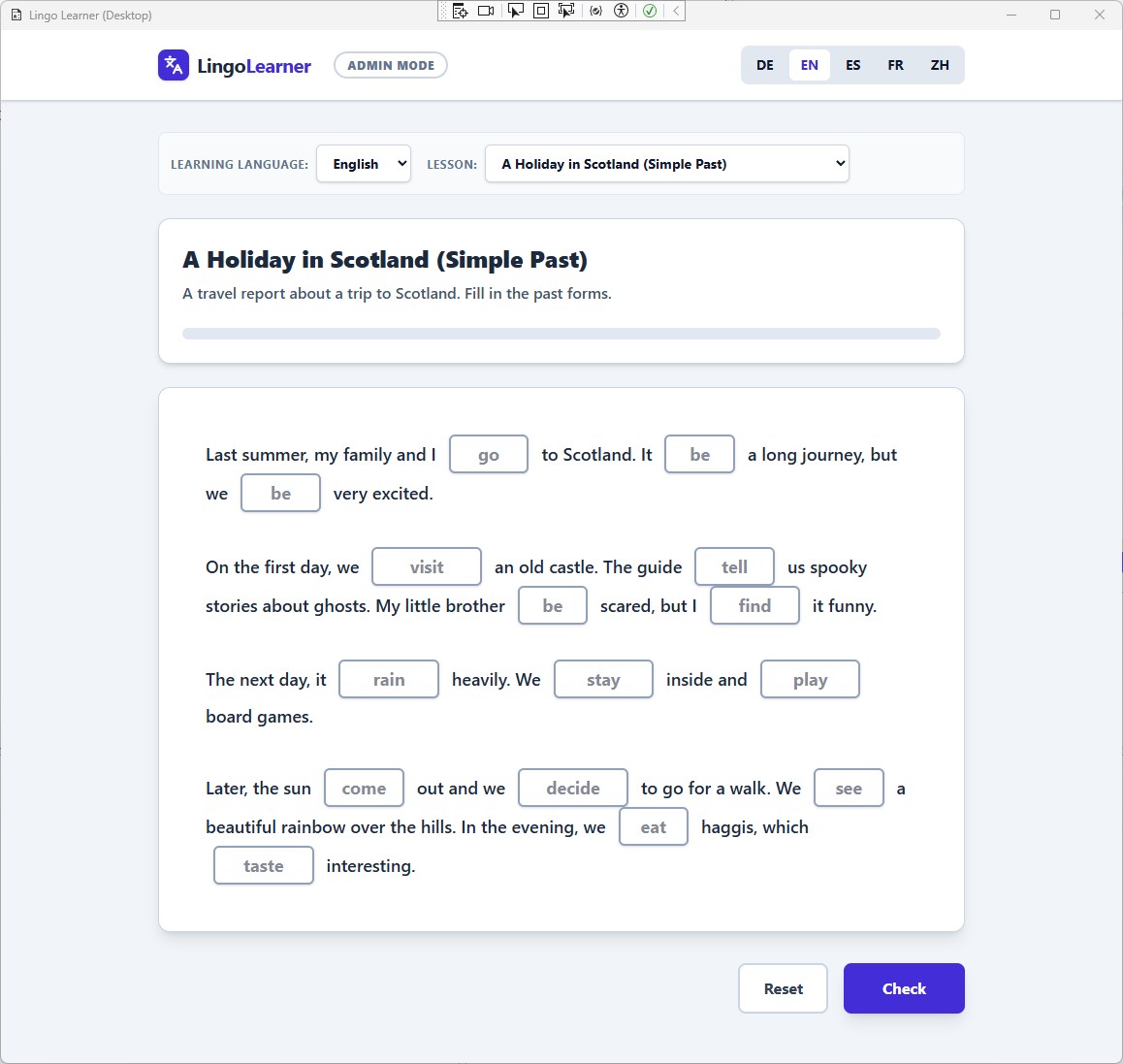
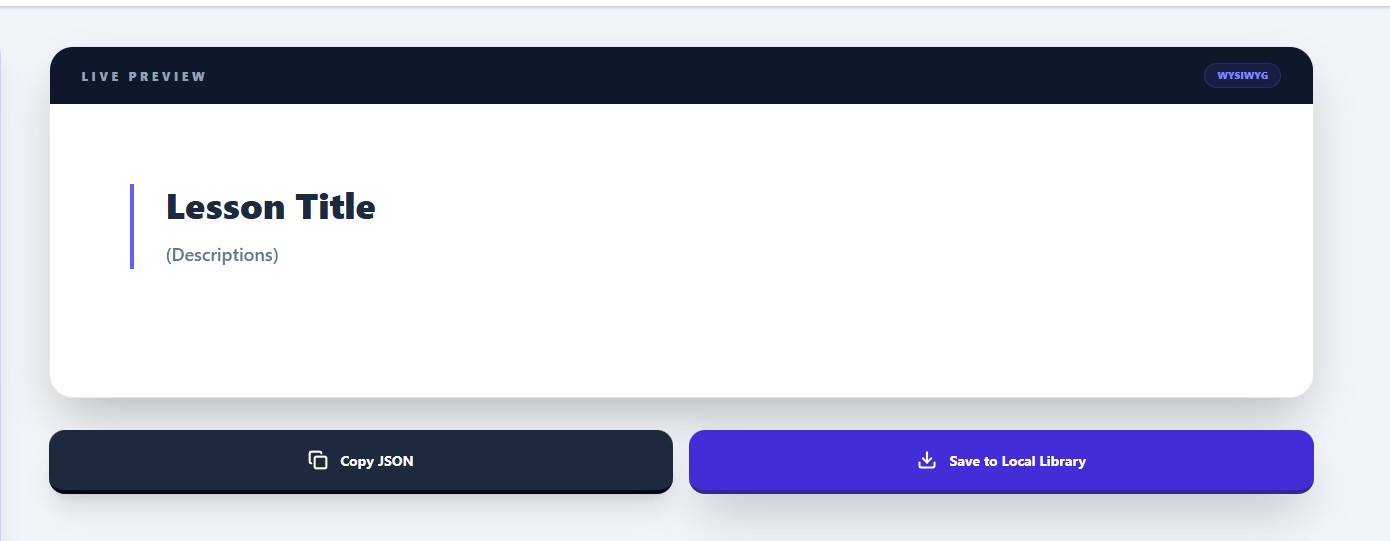
And on the right side of the application you can see, that the buttons has changed and there is a button "Save to Local Library" now.
It's going to store the lesson to the C:/Temp folder and instantly reload all lessons:
Conclusion
And that's it.
If you want to participate in the project, it would be great to receive submissions. 👍